Configuring System Settings
Use the Settings page to configure several default system settings, including: the CygNet service(s) associated with the Line Pack facilities, a calculation time delay to conserve CPU consumption, export and import the device settings to an XML file, facility attributes used to define the facility hierarchy, the facility types used to define the pack sub-segments and pack segments, and apply custom states to pack sub-segments and pack segments.
|
Click the thumbnail to see |
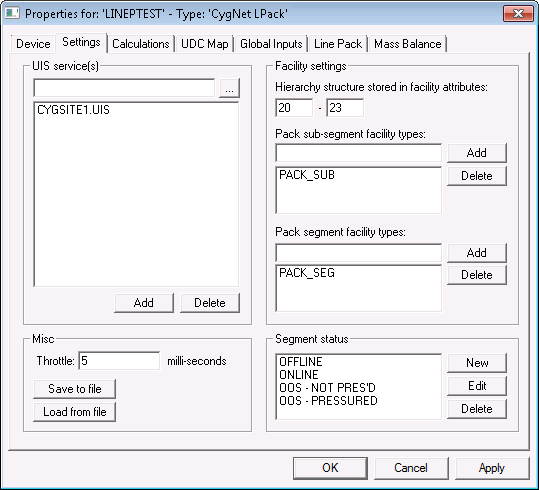
The properties for each section of this page are described below. See the following subsections below for more information:
UIS service(s)
| Property | Description |
|---|---|
|
UIS service(s) |
Specifies the list of UISs associated with the Facility services that store the Line Pack facilities. If multiple UISs are selected, their associated FAC services are treated as one in terms of naming requirements and display.
|
Misc
Once a device is configured, the device settings may be exported to an XML file. Then if you wanted to create another device with the same settings, you would just need to load the saved XML file. This feature is also helpful to back up a device configuration in case settings are accidentally changed or lost.
| Property | Description |
|---|---|
|
Throttle |
Specify the number of milli-seconds to pause between pack segment calculations. This slows the Line Pack calculation in order to be less CPU intensive. With no throttle specified, the calculation may cause the UISs' CPU consumption to temporarily spike as all pack segments are calculated. |
|
Save to file |
Click Save to File to save the device configuration to an XML definition file. Navigate to the desired file location, type the file name, and click Save. |
|
Load from file |
Click Load from File to import the device configuration from a previously saved XML definition file. Navigate to the desired file, select it, and click Open. |
Facility settings
Use this section to create the hierarchy tree used to rollup pack segments and pack sub-segment values.
| Property | Description | |
|---|---|---|
|
Hierarchy structure stored in facility attributes |
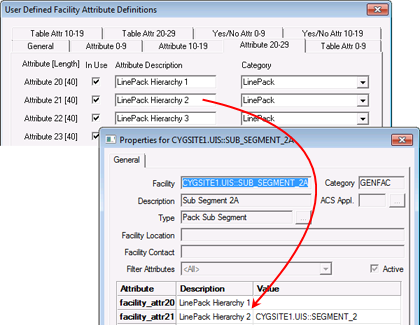
Specify the facility text attributes that define the hierarchy used to rollup Line Pack values. The hierarchy is displayed on the Line Pack page. The hierarchy levels can be defined in any number of facility text attributes, but they must be a consecutive block of attributes.
The first field must be a lower bound attribute and the second field must be an upper bound attribute, i.e. 20 - 25 to indicate that the rollup hierarchy is defined in facility text attributes 20 - 25. The rollup hierarchy model assumes that the lower bound attribute defines the highest level of the hierarchy and the upper bound attribute defines the lowest level of the hierarchy. This also determines the pack sub-segment to pack segment relationships. To Configure Facility Attributes and Hierarchy Relationships
|
|
|
Pack sub-segment facility types |
Specify the Facility Types that will define the pack sub-segments. The default facility type is PACK_SUB, although others can be configured. Multiple Facility Types can be added to this list. The application will use these Facility Types to retrieve the sub-segments for the calculation.
|
|
|
Pack segment facility types |
Specify the Facility Types that will define the pack segments. The default facility type is PACK_SEG, although others can be configured. Multiple Facility Types can be added to this list. The application will use these Facility Types to retrieve the segments for the calculation.
|
Segment status
The Status Properties dialog box allows custom states to be defined. These states can be applied to pack sub-segments and any pack segments that have no child sub-segments on the Segment and Sub-Segment Properties on the Line Pack page.
- Click New to define a new custom status.
- Click Edit to modify the properties of an existing custom state.
- Click Delete to delete a custom status from the list.
|
Status Properties |
| Property | Description |
|---|---|
|
Status name |
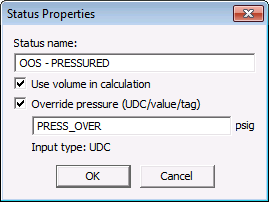
The segment or sub-segment status is stored in a point value. Status name cannot exceed 16 characters. |
|
Use volume in calculation |
If selected, any segment in this state will have their volume included in the pack calculation. |
|
Override pressure |
Specify a pressure override to use when calculating the pack for this volumetric portion of the segment. This pressure will override the Average Pressure input. It can be specified as a value, UDC, or full tag. If it’s a UDC, then it will be resolved to a point using the facility of the segment in this state. The input type is indicated beneath the text box. |


